Dashboard · Data catalog · Agentic RAG · Access control
Ask your documents.
See everything in them.
Connect the cloud storage you already use. PageFinder reads, profiles and charts every file on a live dashboard — and its AI agent searches, opens the pages and answers your questions, with citations.
Start free →- Free to start
- Indexed in place — never copied
- Every answer cites its pages
Which ACME invoices are still due, and for how much?
Searched 4 times · read 6 pages
Three ACME Logistics invoices from Q1 2025 are unpaid, $31,800 in total:
| Invoice | Due | Amount |
|---|---|---|
| INV-20418 | 2025-04-30 | $12,400 |
| INV-20377 | 2025-03-31 | $11,050 |
| INV-20311 | 2025-02-28 | $8,350 |
- INV-20418.pdf · p.1
- INV-20377.pdf · p.1
- Payments-Q1.xlsx · Sheet1
acme-unpaid-q1.xlsx
- Google Drive
- Microsoft OneDrive
- Box
- Amazon S3
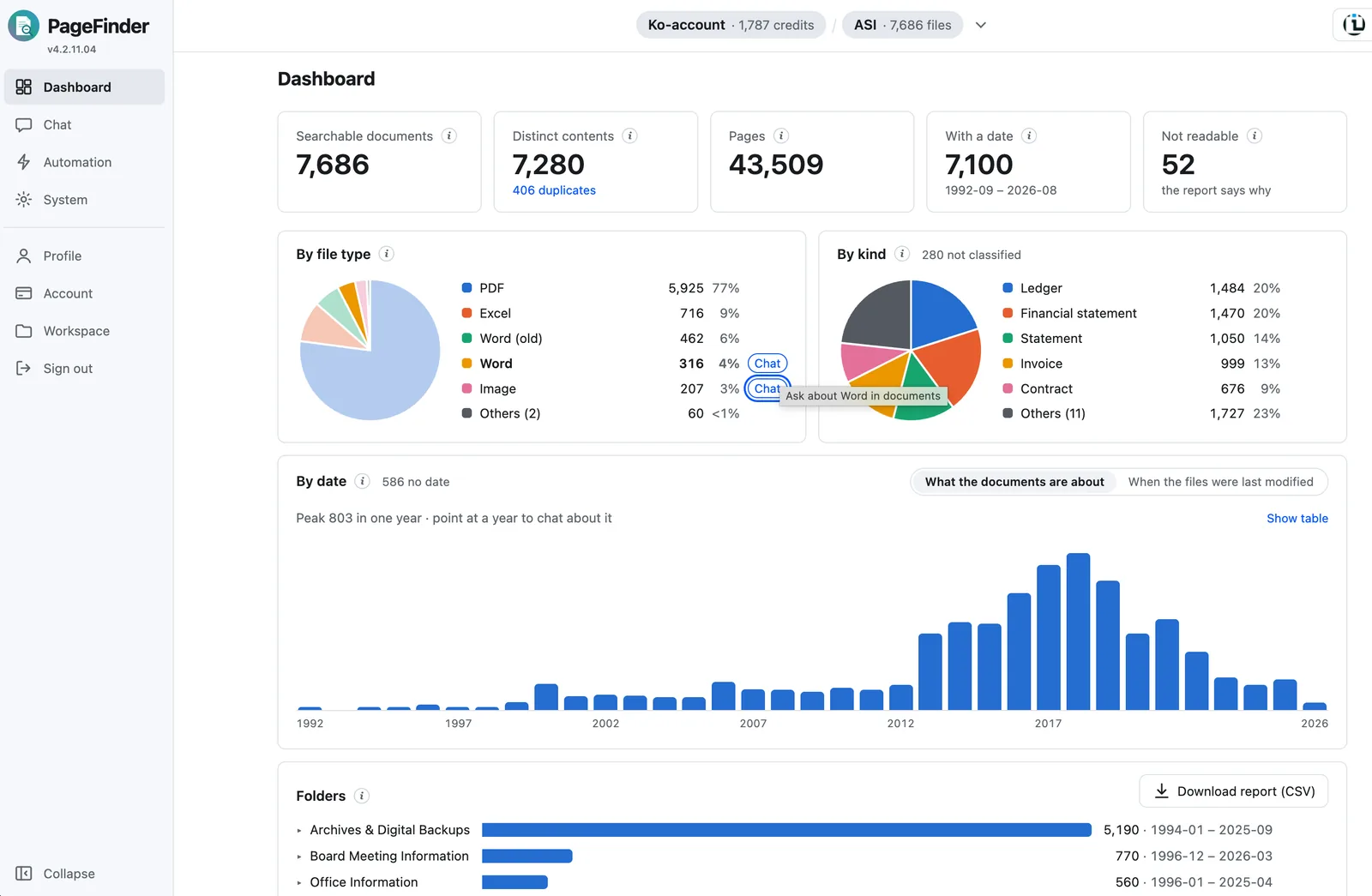
- Dashboard
All your documents at a glance
Documents, pages, duplicates, kinds, years and folders — charted the moment indexing finishes.
- Data catalog
Every file, profiled
A summary, the kind of document, the date it is about and the parties it names — for every file, scans included.
- Agentic RAG
Answers an analyst would give
An agent that searches in several steps, reads the pages it finds and cites them — and can hand you a spreadsheet.
- Access control
Each team sees its own slice
Index once, then grant each team exactly the folders it may ask about — enforced on every question, revocable any time.
Dashboard
Know what you have before you ask
The moment a source is indexed, the dashboard shows what is in it — thousands of files you have never had time to open, laid out as numbers and charts you can read in a minute.
- Documents, pages and the years they cover, by what each document is about
- Breakdowns by file type, document kind, year and folder
- Identical copies found and counted, whatever they are called
- The files that could not be read, and the reason for each
Data catalog
Every document, catalogued for you
As each file is indexed, it gets an AI profile: a short summary, what kind of document it is, the date it is about and the people and companies it names. Scans are profiled from the page image itself, so a stamped invoice is catalogued as well as a born-digital one.
- Summary, kind, date and parties for every file
- The date a document is about — not just when the file was last saved
- The whole catalog as a CSV report, ready for Excel
- Kind
- Invoice
- About
- 2025-03-14
- Parties
- ACME Logistics Ltd.Northwind Trading Co.
- Summary
- Invoice for March freight services, 18 shipments, total $12,400 due 30 April 2025.
From chart to conversation
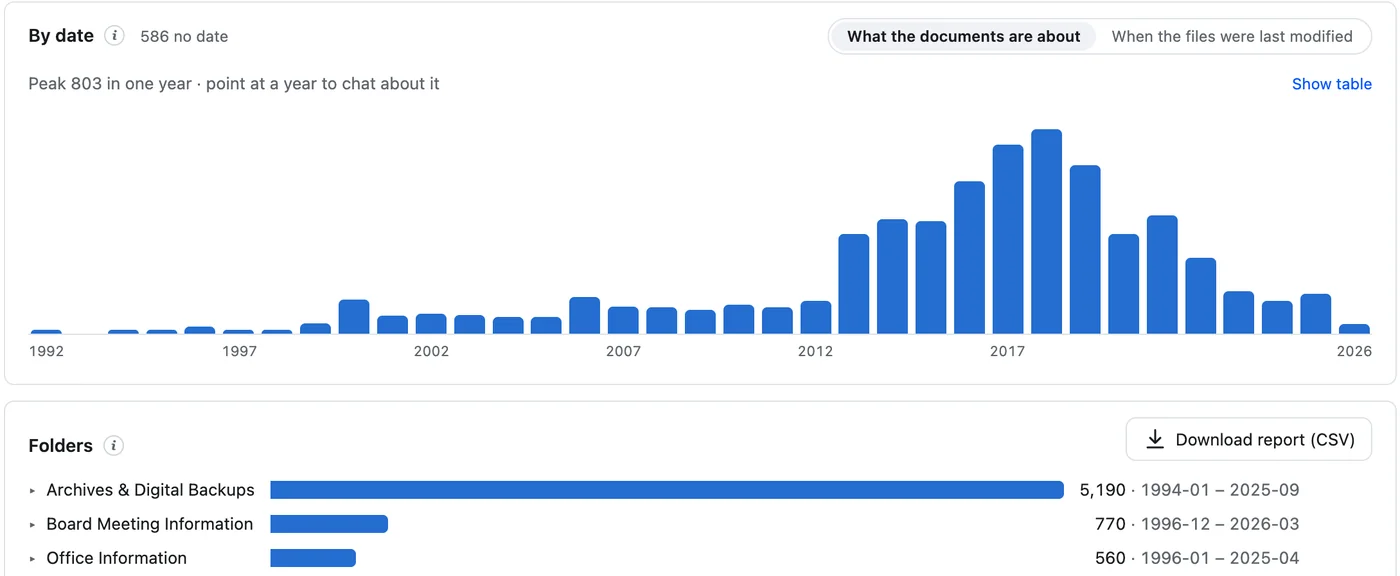
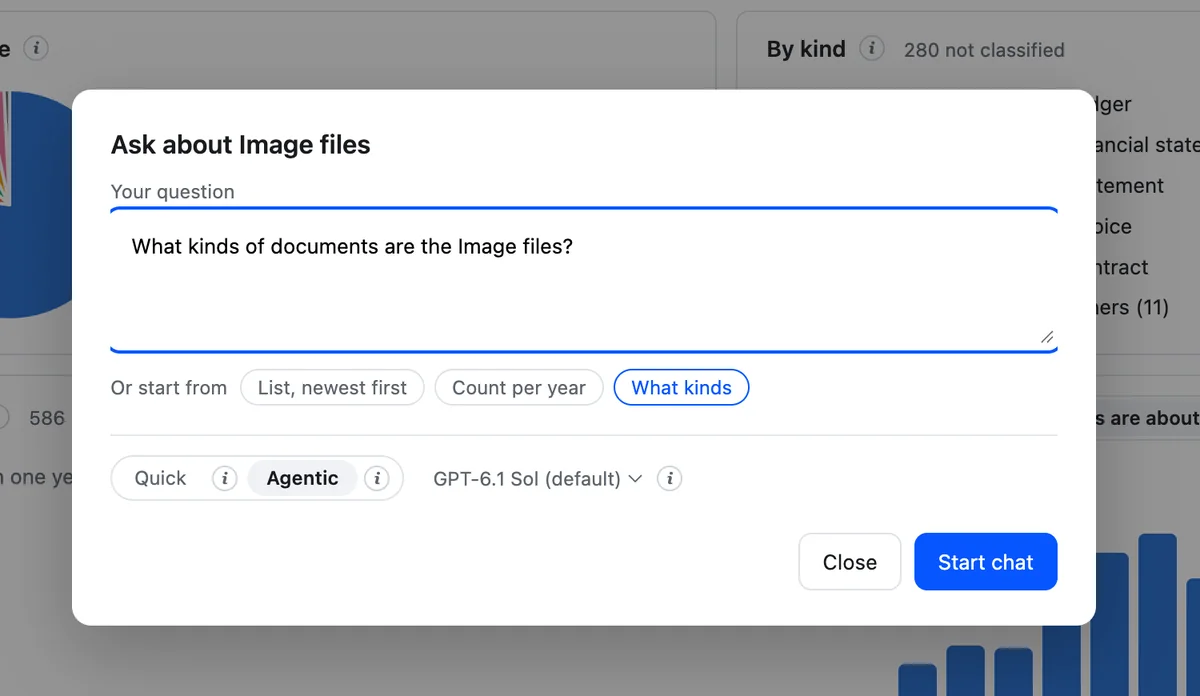
Ask from any chart
Every chart is a way in. Pick a file type, a kind of document or a year, and a question about exactly those files is ready to send — or start from a suggestion: list them newest first, count them per year, or ask what they really are.
- Questions scoped to the slice you clicked
- Quick for a fast answer, Agentic for a thorough one
Agentic RAG
Ask like you would ask an analyst
Ordinary RAG fetches a few passages and hopes they hold the answer. PageFinder's agent works the question: it plans, searches by meaning and by exact word, opens the pages that matter and cross-checks them against each other — until it has an answer you can verify, and a spreadsheet you can use.
- Multi-step search: semantic and keyword, as many rounds as the question needs
- Reads the actual pages — scans, stamps and tables included
- Cross-checks across documents before it answers
- Every claim cited, every table one click from Excel
Which ACME invoices are still due, and for how much?
- PlanFind ACME’s Q1 invoices, then check which were paid
- Search · meaning“ACME Logistics invoice, first quarter 2025” — 14 hits
- Search · exact“INV-203*” “INV-204*” — 6 invoices
- ReadINV-20418.pdf p.1 · INV-20377.pdf p.1 · INV-20311.pdf p.1 (scan)
- Cross-checkPayments-Q1.xlsx — 3 of the 6 marked paid
- Answer3 unpaid, $31,800 — with sources and acme-unpaid-q1.xlsx
Access control
Give each team exactly the folders it needs
One index can serve many teams. A team workspace reads a chosen slice of a larger collection — the folders you grant, and nothing else — with its own members, roles, glossary and conversations. The grant starts empty, is enforced by the server on every search and every page read, and can be changed or revoked at any time without re-indexing a file.
- Grant whole folder trees; a new team workspace sees nothing until you do
- Roles per member — admin, member or read-only
- Enforced inside the search index itself, on every question
- Index once, share many ways — no second copy per team
- Board
- Contracts
- Finance / Invoices
- Finance / Ledgers
- HR
- Projects
- Board
- Contracts
- Finance / Invoices
- Finance / Ledgers
How it works
Connect your storage
Sign in to Google Drive — shared drives included — OneDrive or Box, or point at an S3 bucket. It works immediately; PageFinder indexes the files where they are, and nothing is uploaded or moved.
It catalogues itself
Every file is read — scans and tables too — profiled, and counted on the dashboard. No tagging, no folders to tidy first.
Explore, ask, export
Start from a chart or a plain question. Check each answer against its pages, and take the table away as Excel.
Free to start. Private when you need it.
Cloud
Free to start
Sign up and get credit to try everything. When you want more, buy credit and pay only for what you use.
- Dashboard, data catalog and agentic chat
- Google Drive, OneDrive, Box and Amazon S3
- Prepaid credit by card, with optional automatic top-up
Enterprise
Private deployment
Every feature of PageFinder — dashboard, catalog and agentic chat — running in a completely private system inside your own environment. Your documents, index and AI stay within your network.
- All functions, nothing cut down
- Your infrastructure, your network boundary
- Connects to your on-premises file shares
Built for documents that matter
Originals stay put
Documents are read from their source when needed. Only the search index and the files PageFinder generates are stored — there is no second copy to secure.
Cited, not guessed
Answers point to the document and page they came from, so you can open the original and verify in a click.
Keeps itself current
New, changed and removed files are picked up automatically every few minutes. The dashboard, the catalog and the answers follow your storage, without re-indexing by hand.
Quick or Agentic, per question
Quick answers from one search pass, in seconds and for little credit. Agentic searches in several steps, reads the pages and can build a spreadsheet. You choose each time you ask.
Speaks your team’s language
Each workspace carries its own glossary, so the agent reads your abbreviations, product names and internal terms the way your team does.
Answers that become spreadsheets
“Collect the amounts and due dates from the ACME invoices” ends in an Excel file, with the audit trail of how each row was found.
Your documents stay yours
- No second copy. Originals are read from your storage on demand. What is kept is the search index, page previews and the files generated for you.
- Encrypted. HTTPS for every request, and everything stored — databases, the search index, generated files and the access tokens for your storage — encrypted at rest.
- Not used for training. AI models run through Amazon Bedrock by default, under terms that keep your content out of model training.
- Isolated workspaces. Access is enforced by the server on every request, workspace by workspace — and folder by folder for a team workspace.
- Read-only access to your sources. PageFinder asks for read-only access where the provider offers it, and never edits, moves or deletes your files.
- Private deployment available. With Enterprise, every function runs in a completely private system inside your own environment.
Common questions
Are my documents copied or uploaded?
No. PageFinder indexes files in place and reads the original from your storage only when it needs a page. What it keeps is the search index and the files it generates for you, such as workbooks.
What is the difference between Quick and Agentic?
Quick answers from one search pass, fast and with a small AI credit use. Agentic takes longer and uses more credits: it searches in several steps, reads the pages, keeps the whole conversation in mind and can build spreadsheets. You choose per question.
Who can see what?
Only members of a workspace can ask about its documents, and a member’s role — admin, member or read-only — decides what else they can do. To give a team part of a larger collection, create a team workspace and grant it folders: its members see those folders and nothing else. Invite colleagues by email from your account.
What kinds of files does it read?
PDFs — digital and scanned — Word, Excel and PowerPoint files, email messages and images.
Is my content used to train AI models?
No. Models run through Amazon Bedrock by default — or Google Gemini, if your workspace administrator chooses it — under terms that do not allow training on your content. The Privacy Policy names each provider.
Which storage can I connect?
Google Drive — including shared drives and folders shared with you — Microsoft OneDrive, Box, and Amazon S3 buckets, ours or your own.
What does it cost?
You pay for what you use. Add prepaid credit by card and each indexed file and answer draws it down at the prices shown in your account; new accounts start with a credit to try it. A prepaid plan may also carry a small monthly maintenance fee based on how many files you keep indexed; your account shows it before it applies. Turn on automatic top-up if you would rather not watch the balance.
How do I get an account?
Sign in with Google, or with an email address and password. If your address is not yet allowed on this deployment you will be told so, and you can ask its administrator to invite you.
I can’t reset my password.
If you signed up with Google, your account has no PageFinder password to reset — choose “Continue with Google” on the sign-in page instead. An address can use Google or a password, not both.
Stop searching. Start asking.
Free to start. Connect your cloud storage and see your dashboard as soon as it is indexed.
Start free →