For OneDrive
Know what is in your OneDrive.
Then ask it anything.
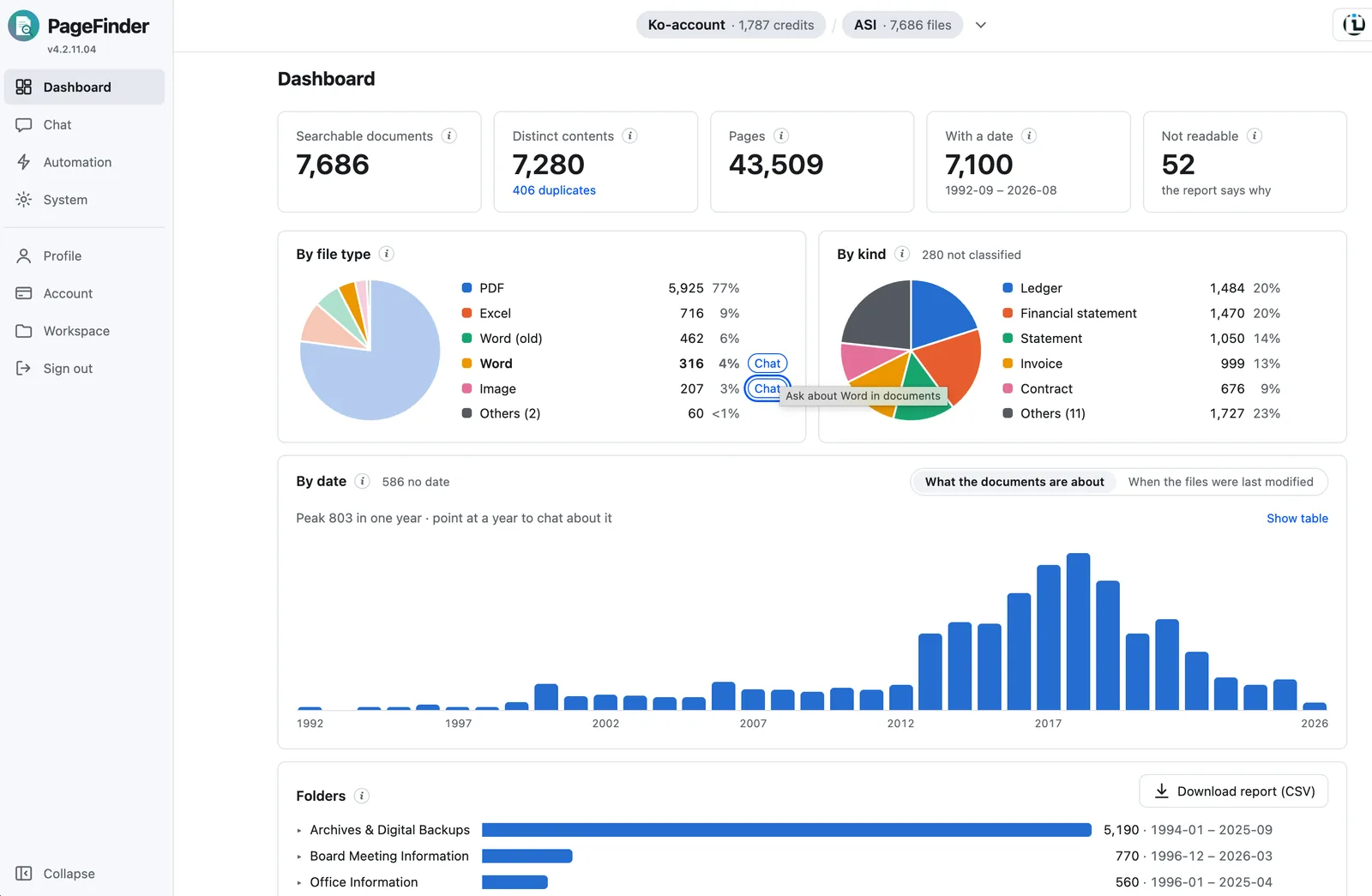
A OneDrive fills faster than anyone can read it. PageFinder connects read-only, reads every file in the folders you choose — Word, Excel, PowerPoint, PDFs and scans — and shows the whole collection on a dashboard. Then its agent answers questions across all of it, citing the pages.
- Personal, work or school accounts
- Read-only, pick the folders
- Free to start — no card
Which ACME invoices are still due, and for how much?
Searched 4 times · read 6 pages
Three ACME Logistics invoices from Q1 2025 are unpaid, $31,800 in total:
| Invoice | Due | Amount |
|---|---|---|
| INV-20418 | 2025-04-30 | $12,400 |
| INV-20377 | 2025-03-31 | $11,050 |
| INV-20311 | 2025-02-28 | $8,350 |
- INV-20418.pdf · p.1
- INV-20377.pdf · p.1
- Payments-Q1.xlsx · Sheet1
acme-unpaid-q1.xlsx
- Microsoft OneDrive
- Box
- Amazon S3
- Google Drive
What the audit tells you about your OneDrive
- How many documents and pages you hold, and the years they cover
- What they are: contracts, invoices, reports, statements — classified for every file, scans included
- Identical copies across folders, whatever they were renamed to
- Files that could not be read, and why — password-protected, damaged or empty
- The companies and people named across the collection, and how they connect
- The whole catalog as CSV, ready for Excel
Network
See who is in your OneDrive
The catalog names the companies and people in every file. The network puts them together: one entity per organisation or person, however it was spelled, sized by how many documents name it and linked to the names it appears with. Pick one to see its documents by kind and by year, the files it shares names with — and ask about it from there.
- One entity per company or person, spellings merged — “ACME Logistics Ltd.” and “ACME” are one
- Who appears together, across contracts, minutes and invoices
- Each name’s documents by kind and year, one click from a question about them
- The sources behind any answer, drawn the same way
Why not the AI built into your storage?
Copilot answers about the files you select. This starts from all of them.
Copilot in OneDrive is built for the files in front of you: summarise, compare, draft. PageFinder begins with an audit of everything in the folders you connect, catalogues each file, and then answers across all of them — on a free-to-start, pay-per-use plan with no per-seat licence.
- What is actually in here?
- A dashboard of every file by kind, year, type, folder and duplicates — before you ask a question.
- Which files are a problem?
- Duplicates counted, undated files found, and every file that could not be read listed with the reason.
- Who are these documents about?
- The companies and people named, catalogued for every file and connected on a network view.
- Answers I can check and use
- An agent that searches in rounds, reads the pages, cites them, and hands you the table as Excel.
- One tool for all our storage
- OneDrive, Box and S3 in one place, each team granted its own folders. Pay per use, no per-seat licence.
Connecting OneDrive
Connecting takes a minute
Sign in to Microsoft
From your workspace, choose OneDrive and sign in with the account that holds the files — personal, or work or school. Microsoft asks you to allow PageFinder to read your files.
Pick the folders
Choose the folders to include. Everything else stays out, and you can change the choice later without re-indexing.
Watch it fill in
The dashboard and the catalog build as files are read. New, changed and deleted files are picked up automatically from then on.
- Clients3,804 files
- Finance / 20241,290 files
- Finance / 20251,105 files
- Pictures12,530 files
- Desktop218 files
3 folders · 7,870 files will be indexed in place
For your IT admin
PageFinder is a Microsoft identity platform application that reads OneDrive on behalf of the signed-in user, through Microsoft Graph with the delegated Files.Read.All permission and offline_access for refresh. It never writes, moves or deletes anything.
- Access is the user's own: it reaches only what that person can already open
- If your tenant requires admin consent for applications, an admin grants it once, on the consent screen or in Entra ID under Enterprise applications
- Originals are read on demand and are not copied; what is kept is the search index and page previews, encrypted at rest
- Disconnecting the workspace revokes the token; deleting the workspace removes its index
Your documents stay in OneDrive
- No second copy. Originals are read from your storage on demand. What is kept is the search index, page previews and the files generated for you.
- Encrypted. HTTPS for every request, and everything stored — databases, the search index, generated files and the access tokens for your storage — encrypted at rest.
- Not used for training. AI models run through Amazon Bedrock by default, under terms that keep your content out of model training.
- Isolated workspaces. Access is enforced by the server on every request, workspace by workspace — and folder by folder for a team workspace.
- Read-only access to your sources. PageFinder asks for read-only access where the provider offers it, and never edits, moves or deletes your files.
- Private deployment available. With Enterprise, every function runs in a completely private system inside your own environment.
Common questions
Does it work with OneDrive for work or school?
Yes. Sign in to PageFinder with Google, with your personal Microsoft account, or with an email address — then connect the work or school account that holds the files. Your organisation may ask an admin to approve the app once.
Do you copy my files?
No. Files are read from OneDrive when a page is needed, and only the search index, page previews and the files PageFinder generates for you are stored.
Does it read Word, Excel and PowerPoint?
Yes, along with PDFs, scans, email messages and images. Spreadsheets are read sheet by sheet and can be queried as tables.
Can my team see only part of it?
Yes. Index once, then create a team workspace and grant it the folders it may ask about. The grant is enforced on every question.
Are my documents copied or uploaded?
No. PageFinder indexes files in place and reads the original from your storage only when it needs a page. What it keeps is the search index and the files it generates for you, such as workbooks.
What is the difference between Quick and Agentic?
Quick answers from one search pass, fast and with a small AI credit use. Agentic takes longer and uses more credits: it searches in several steps, reads the pages, keeps the whole conversation in mind and can build spreadsheets. You choose per question.
Who can see what?
Only members of a workspace can ask about its documents, and a member’s role — admin, member or read-only — decides what else they can do. To give a team part of a larger collection, create a team workspace and grant it folders: its members see those folders and nothing else. Invite colleagues by email from your account.
What kinds of files does it read?
PDFs — digital and scanned — Word, Excel and PowerPoint files, email messages and images.
Is my content used to train AI models?
No. Models run through Amazon Bedrock by default — or Google Gemini, if your workspace administrator chooses it — under terms that do not allow training on your content. The Privacy Policy names each provider.
What does it cost?
You pay for what you use. Add prepaid credit by card and each indexed file and answer draws it down at the prices shown in your account; a brand-new user starts with a 2,000 AI-credit signup bonus. Each workspace also costs 100 AI credits a month, charged on the day of the month it was created (the first month is free), and a prepaid plan may carry a small monthly maintenance fee based on how many files you keep indexed; your account shows both before they apply. Turn on automatic top-up if you would rather not watch the balance.
How do I get an account?
Sign in with Google, with a personal Microsoft account — the one behind OneDrive — or with an email address and password. If your address is not yet allowed on this deployment you will be told so, and you can ask its administrator to invite you.
I can’t reset my password.
If you signed up with Google or Microsoft, your account has no PageFinder password to reset — choose that provider on the sign-in page instead. An address can use one sign-in provider or a password, not both.
Know what is in your OneDrive. Then ask.
Free to start, no card. Connect OneDrive, pick the folders, and see your dashboard as soon as it is indexed.
Start free — no card →Not on OneDrive? PageFinder also connects OneDrive, Box, S3 and Google Drive.